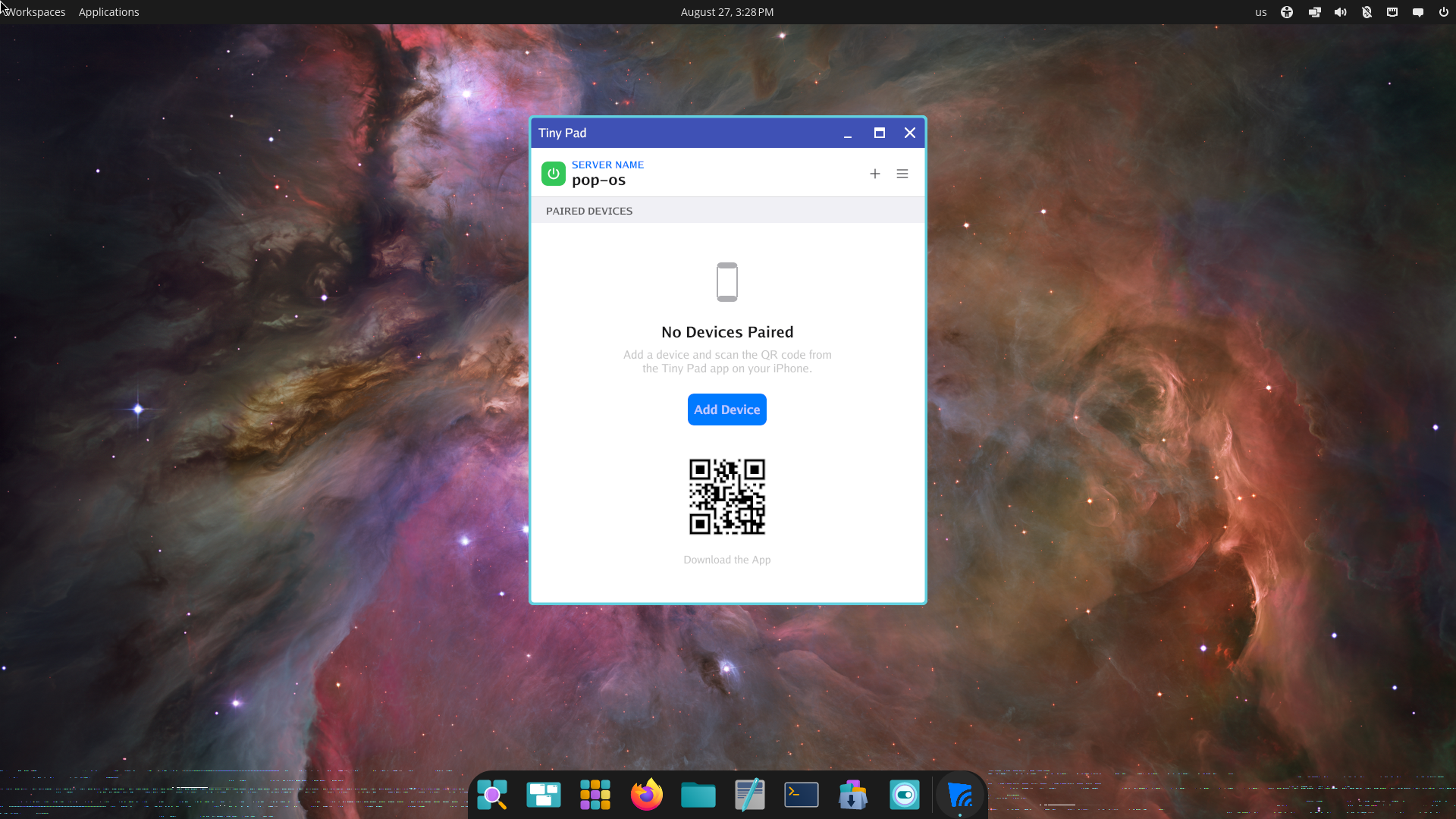
Tiny Pad for Pop!_OS is published as a Debian package (.deb) in the Tiny Pad repository. Add the repository once and apt installs it and every later release, the same way it handles the rest of your system.
Add the Tiny Pad repository
The recommended way. Three commands, and updates arrive on their own afterwards.
Trust the signing key
Fetch the key that apt uses to verify every Tiny Pad package. The first line installs curl, which a minimal install may not have:
Add the repository
Point apt at the Tiny Pad repository:
Install Tiny Pad
Refresh the package lists and install. apt pulls in the runtime libraries it needs:
sudo apt upgrade. Every package and every index is signed, and apt refuses anything that does not verify.Start Tiny Pad
Launch the server from the terminal, or find Tiny Pad Server in your applications menu:
Install a single release by hand
Use this if you would rather not add a repository. It installs one release and nothing more: Tiny Pad will not update itself, so you repeat these steps for each new version. Prefer to point and click? On Pop!_OS 24.04, double-clicking the downloaded .deb opens it directly in the COSMIC Store (Pop!_OS’s built-in app store), which installs local packages and their dependencies. No extra tools required.
Find the downloaded package
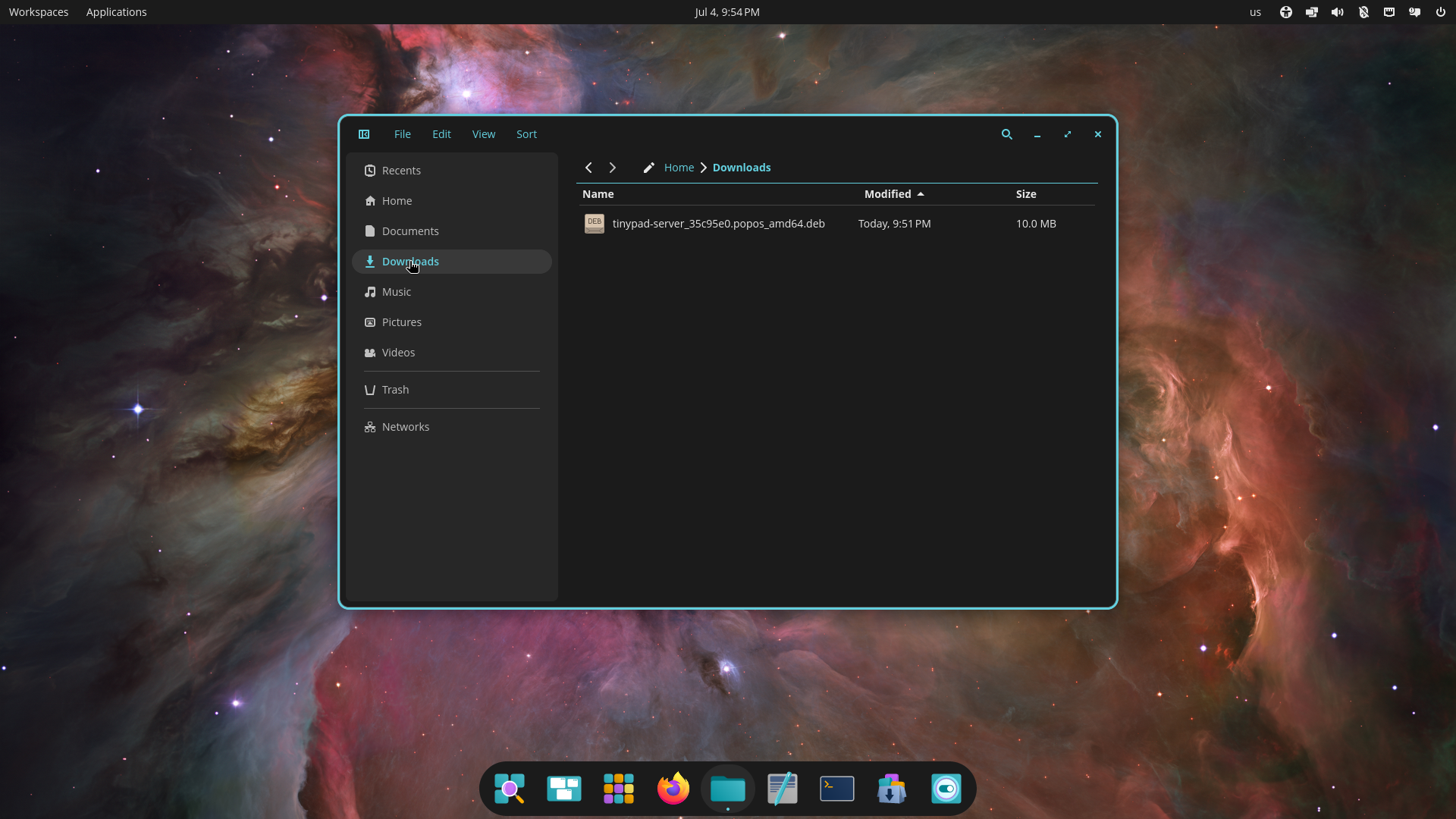
Open Files and go to your Downloads folder. You should see the Tiny Pad .deb you downloaded.
Open the package with the COSMIC Store
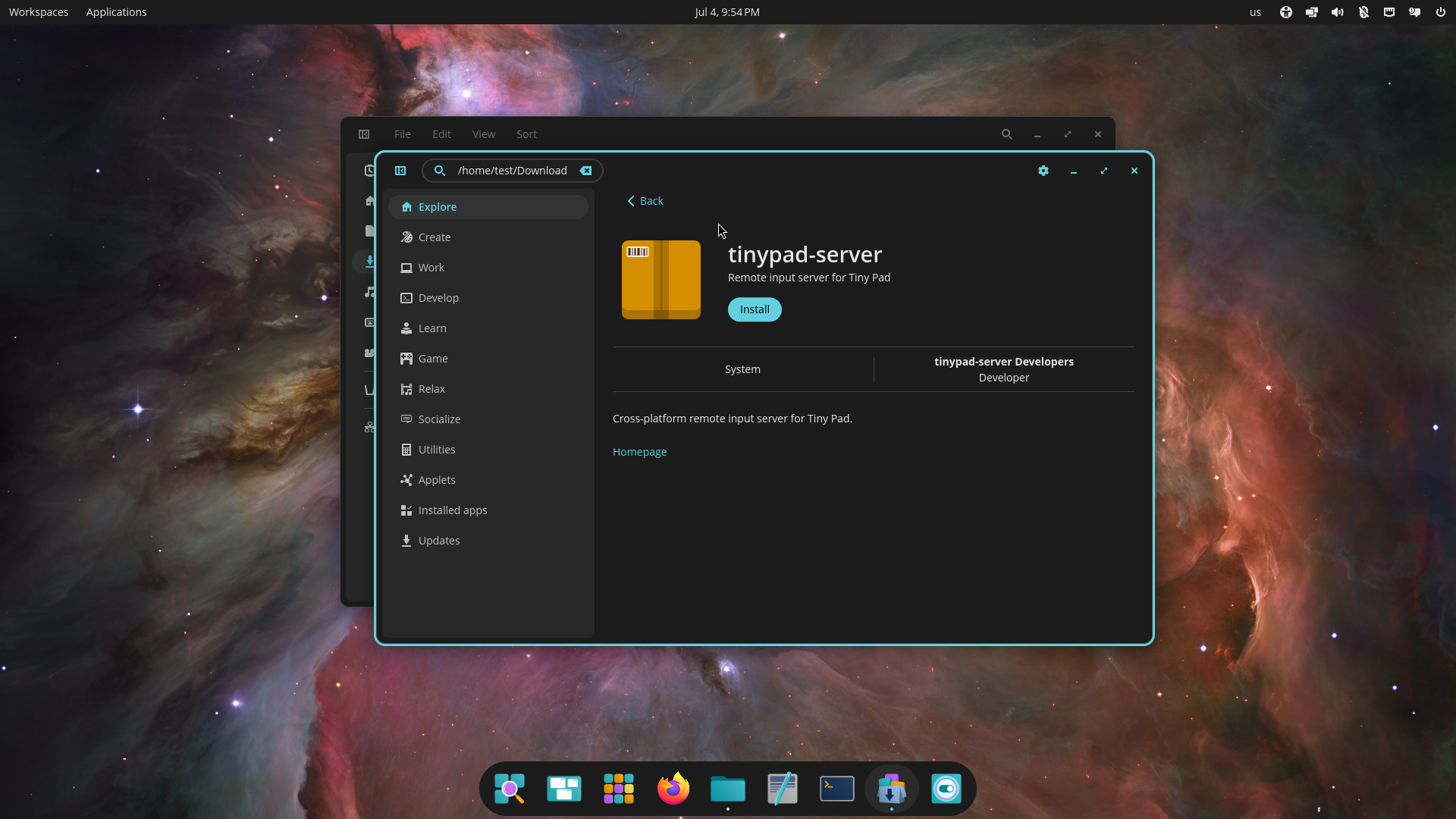
Double-click the .deb. It opens in the COSMIC Store, showing tinypad-server from a local file. Click Install.
Authenticate
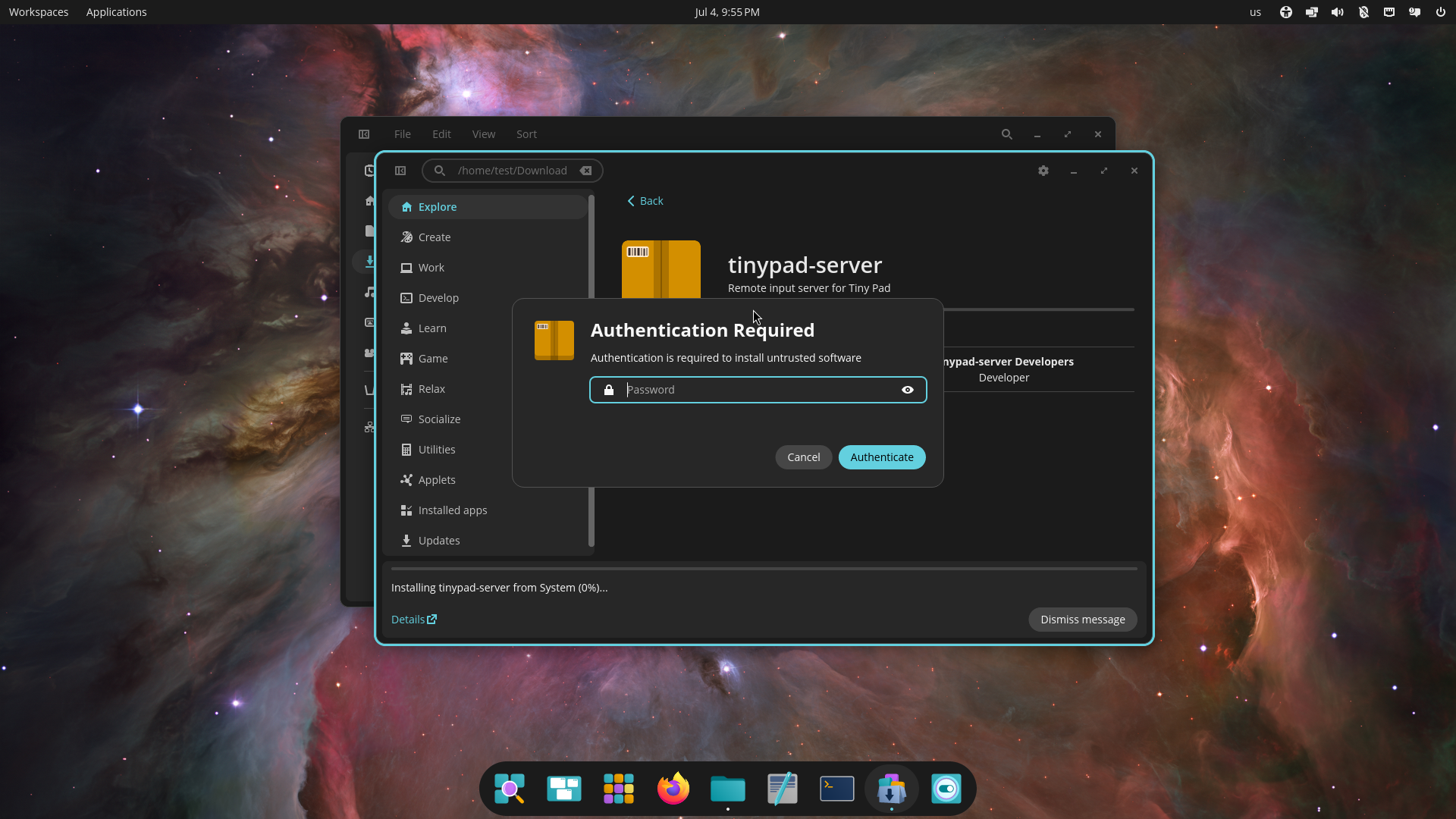
Enter your password to authorize the installation, then click Authenticate.
Finish
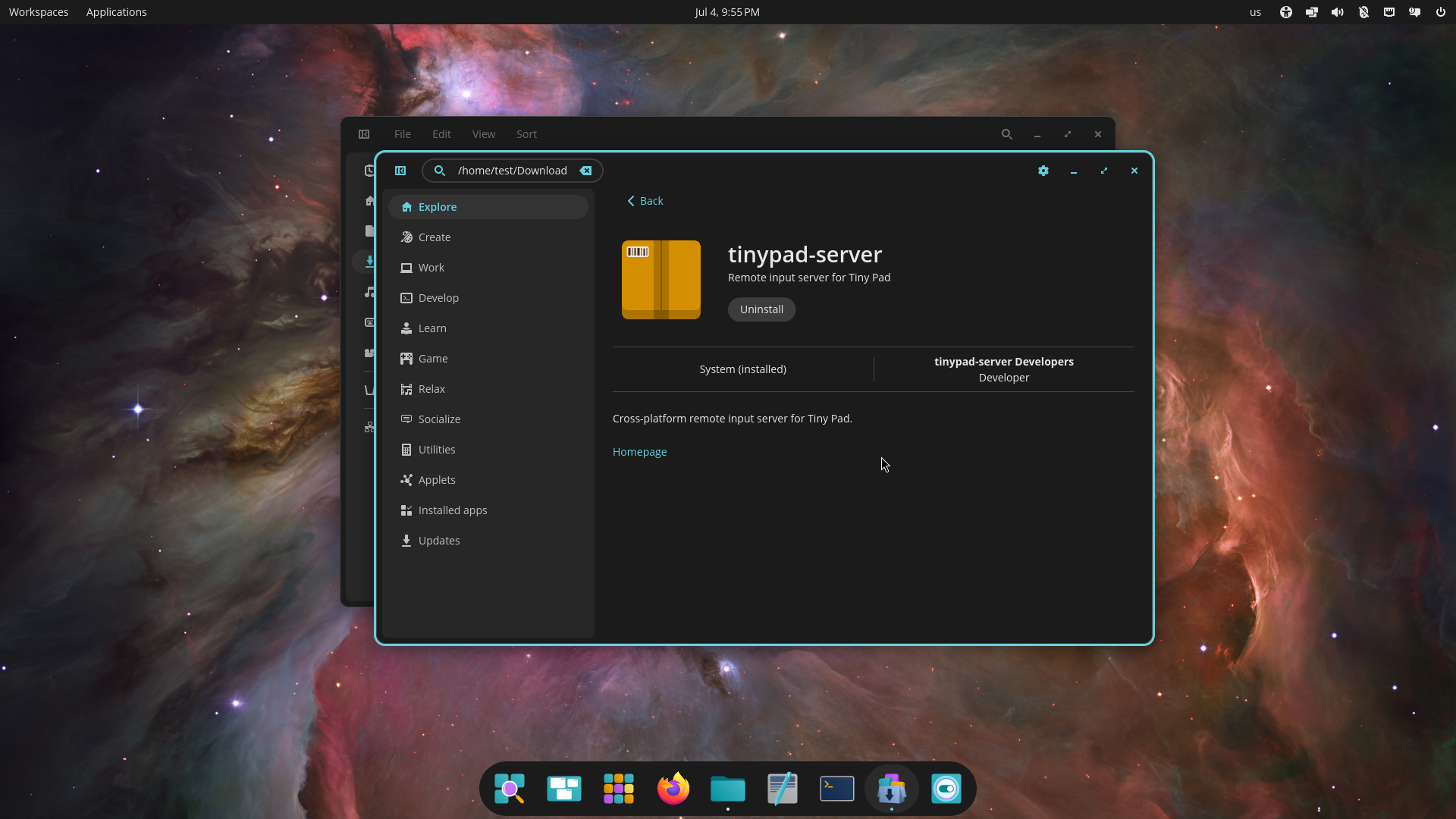
The COSMIC Store installs Tiny Pad and its dependencies. When the button changes to Uninstall, the install is complete.
Start Tiny Pad
Launch Tiny Pad Server from your applications menu. Click Add Device to pair your iPhone.